
Set up two-factor authentication (2FA)
A step-by-step guide to protecting your account with a second factor, from scratch, in a few minutes.
What is two-factor authentication?
Two-factor authentication (2FA) adds a second step to sign-in: after your password, you also enter a short code from an app on your phone. Even if your password leaks, nobody can get in without that code.
Stronger protection
A stolen password is no longer enough to access your account.
Required for sensitive actions
Some actions, like issuing an API key, ask you to confirm a code.
Backup codes included
One-time recovery codes let you sign in if you lose your phone.
How long does it take?
Setting up 2FA takes about two minutes and only needs to be done once per account.
What you need
An authenticator app on your phone that generates time-based codes. Any of these work: Google Authenticator, Authy, 1Password or Microsoft Authenticator.
No authenticator app yet?
Install one of the apps above from your phone’s app store before you start. They are free and work offline.
Enabling 2FA from scratch
Open your profile security settings
In the platform, open your profile and go to the Security tab. Two-factor authentication lives here, under the Enable 2FA button.
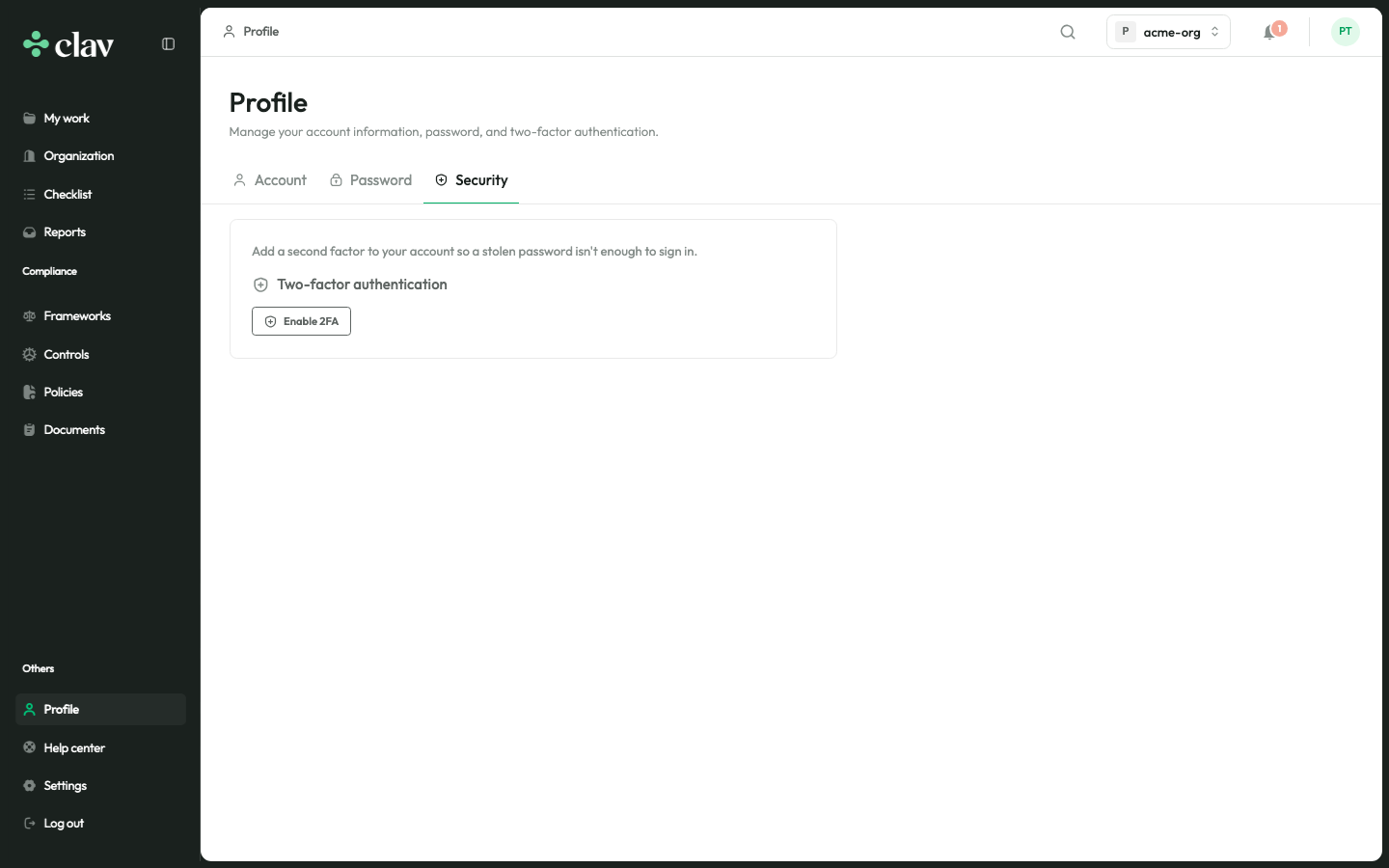
Enable 2FA and confirm your password
Click Enable 2FA. For your safety, you are asked to confirm your current account password before setting up the second factor.
Scan the QR code in your authenticator app
Open an authenticator app and scan the QR code. Can’t scan it? Type the secret shown below the code into the app manually.
Save your backup codes and enter the 6-digit code
Copy the one-time backup codes shown on the same screen and store them somewhere safe, such as a password manager. Then type the current 6-digit code from your authenticator app to confirm.
You’re all set
Two-factor authentication is now active on your account. From now on you’ll confirm a code when signing in and when performing sensitive actions.
Keep your backup codes safe
Backup codes are your safety net. Each one signs you in a single time if you don’t have your authenticator app on hand.
Store them somewhere safe
Save the codes in a password manager, not in the same place as your password. Treat them like a spare key.
Regenerate when needed
Running low or think a code was exposed? Regenerate a fresh set from the Security tab: the old codes stop working.
Don't lose both at once
If you lose your authenticator app and your backup codes, you may be locked out and need an administrator to help you recover access. Keep the backup codes somewhere you can always reach.
If you lose access to your app
Use a backup code
On the verification screen, choose Use a backup code and enter one of the codes you saved.
Get a code by email
Choose Send code by email on the verification screen to receive a one-time code in your inbox.
Ask an administrator
If you can’t use either option, an organization administrator can help you regain access to your account.
Frequently asked questions
Which authenticator app should I use?
Any TOTP-compatible app works: Google Authenticator, Authy, 1Password or Microsoft Authenticator are all good choices. If you already use a password manager with a built-in authenticator, that works too.
I can't scan the QR code. What do I do?
Every authenticator app lets you add an account manually. Choose that option and type the secret shown below the QR code on the setup screen.
What are backup codes for?
Backup codes are one-time codes that sign you in when you don’t have your authenticator app, for example if you lose or replace your phone. Store them somewhere safe and separate from your password.
I lost my phone and my backup codes. Can I still get in?
On the verification screen you can also request a code by email. If that isn’t available, an organization administrator can help you recover access. This is why keeping your backup codes safe matters.
Do I need to enter a code every time I sign in?
Yes. After your password you enter the current 6-digit code from your authenticator app. You’ll also be asked to confirm a code for sensitive actions, such as creating an API key.
Can I turn 2FA off later?
You can disable 2FA from the Security tab in your profile, though we recommend keeping it on. Note that some organizations require 2FA, and some actions won’t be available without it.